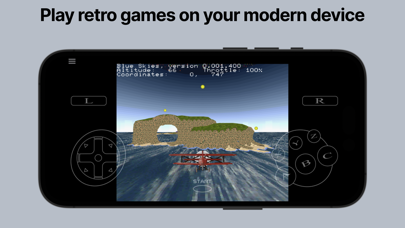
'Yaba Sanshiro' has implemented Saturn hardware using software, allowing you to play Saturn games on iOS devices.
For copyright protection, 'Yaba Sanshiro' does not include BIOS data or games. You can play your games by following these instructions:
You can also check out this YouTube video. https://www.youtube.com/watch?v=VxHDJR2Xcf4
What You Need
- iPhone 8 or above
- Mac or PC
- Saturn game CD-ROM
- CD drive connected to your Mac or PC
Steps
-
Dump the CD-ROM image from your own SEGA Saturn game CD-ROM. If you are using a PC, you can use our dumping tool. If you are using a Mac, follow these steps:
- Install the CD-ROM dump tool. AnyToISO Converter is recommended.
- Dump your CD-ROM. The .cue format is recommended.
- Install brew.
- Install chdman with this command:
brew install rom-tools
- Convert the CD-ROM image to a CHD file with this command. Replace [game file name] with the name you assigned to the CD-ROM image:
chdman createcd -i [game file name].cue -o [game file name].chd
-
Transfer the CHD file to a location accessible by your iPhone. The iCloud Drive is the easiest option.
-
Run YabaSanshiro on your iPhone.
-
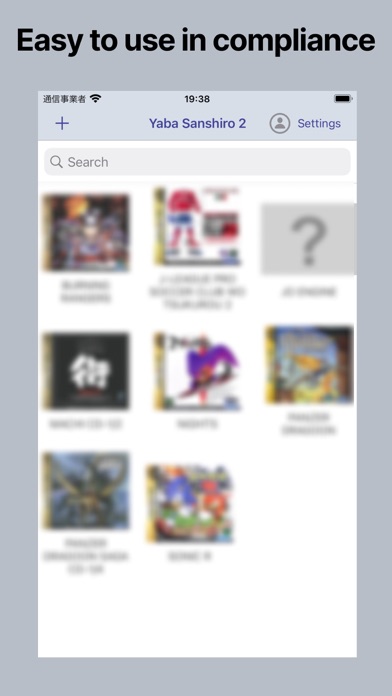
Tap the + button and select your CHD file.
-
Tap the CHD file you added. The game will then start.
Menu
By pressing the menu button, you can display the menu screen.
Exit
Return to the home screen.
Reset
Restart the virtual device.
Change Disk
Save State
Save the current state.
Load State
Load a previously saved state.
Game Controller
Settings
Cartridge
Select the type of cartridge installed on your emulated SEGA Saturn. Backup RAM is an external backup RAM to save game data. RAM is an external RAM for specific games that require a large amount of RAM, like King of Fighters.
Show FPS
Show or hide the Frames Per Second (FPS), which indicates the speed of emulation on your device. ‘60/60’ represents optimal performance, equivalent to the actu